Office 2010 product key change error Step by Step
Symptoms
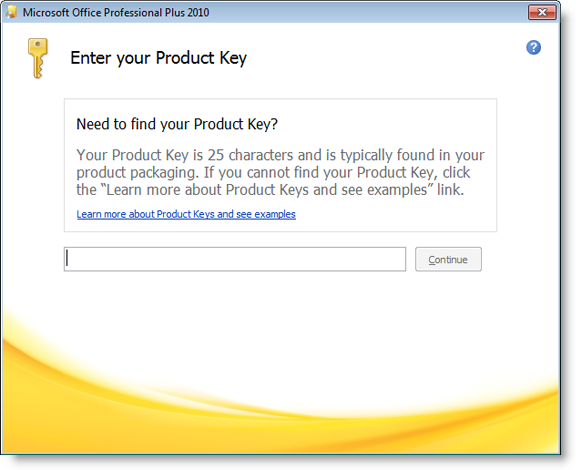
The previously installed version of Office 2010 prompts the user to change the product key. The screen then disappears, and shows no response when product key change is clicked.
Cause
This may be caused when the product keys of Office 2010 programs do not match.
Resolution
Note:The following describes how to modify the registry. Incorrect registry modification can cause serious problems, so please proceed with extra caution. For additional protection, you are recommended to back up the registry before modifying it. This allows you to restore the registry if a problem occurs.
1.Click Start and enter regedit in the search pane. At the top of the program list, click regedit.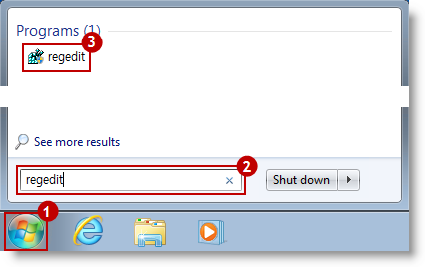
 If the user account control message appears, enter the administrator password, or click Yes.
2.In Registry Editor, go to the HKEY_LOCAL_MACHINE\SOFTWARE\Microsoft\Office\14.0\Registration path.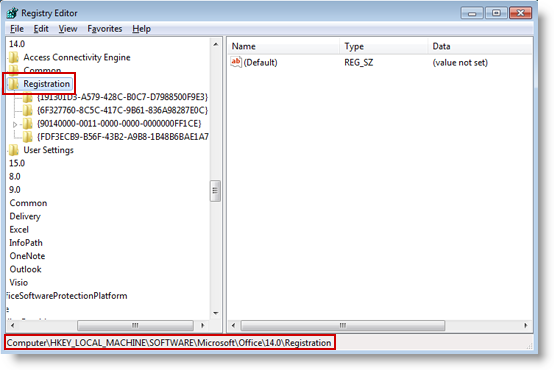
 If the operating system is Windows 7 64-bit, go to the HKEY_LOCAL_MACHINE\SOFTWARE\Wow6432Node\Microsoft\Office\14.0\Registration path.
3.There are several GUID (Globally Unique Identifiers), consisting of a combination of alphanumeric characters, in the Registration subpath. Each GUID specifies the program that is installed on your computer. Click each GUID to view the registry entries in the right pane, and find and select the GUID that contains the relevant Office program version.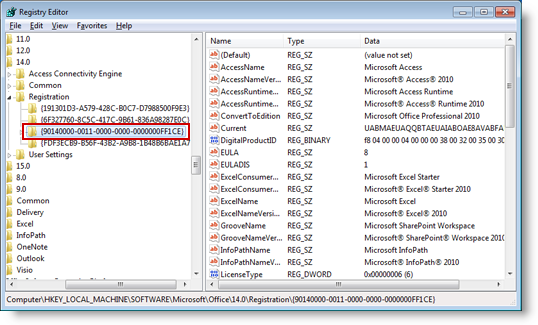
4.After selecting the GUID that contains the Office program version, find and right-click DigitalProductID and click delete.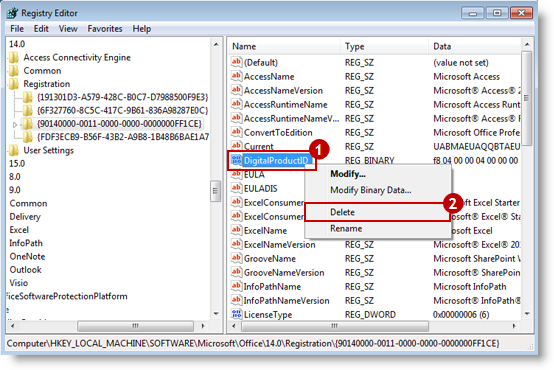
Click Yes when the confirm value delete message appears.
5.Find and right-click ProductID and click delete.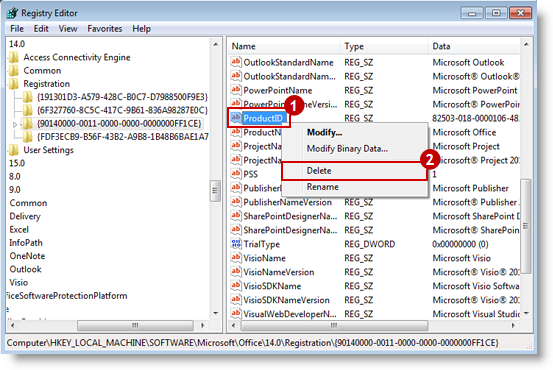
Click Yes when the confirm value delete message appears.
6.Close Registry Editor and restart the computer.
7.When you run any Office 2010 program, the Enter your product key screen will appear. Enter the correct product key to complete product key change.

TKB:1152